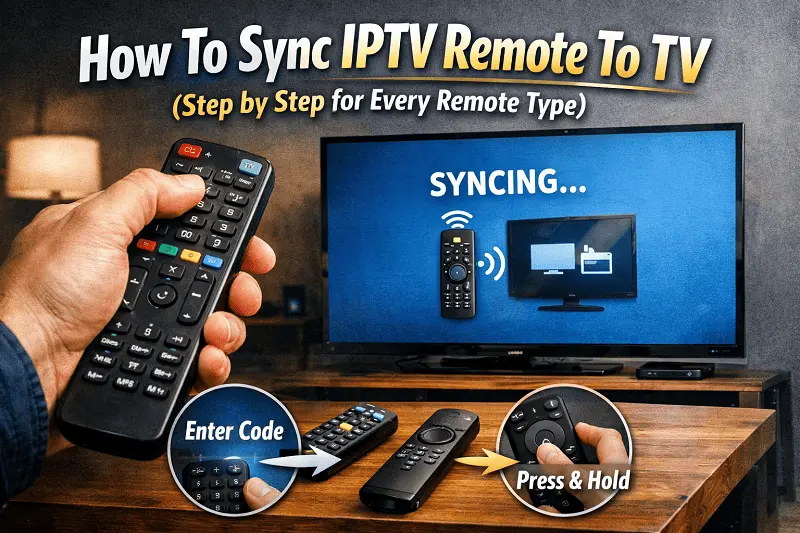
Your IPTV box is working. The picture is fine. But the remote only controls the box, not the TV. You still need a second remote for volume, power, or switching inputs.
This guide from Guru IPTV fixes that. You’ll learn how to sync your IPTV remote to your TV so one remote handles everything. It works for most IPTV box brands, most TV brands, and all common remote types.
Figure Out What Type of Remote You Have
Before anything else, look at your remote. The type you have determines how you’ll sync it. IR remotes need a clear line of sight to the TV. Most MAG boxes ship with these. Bluetooth remotes connect wirelessly to the IPTV box. Many Formuler and Android TV boxes use them. These often have a built-in IR sensor on the front for TV control. RF remotes use a small USB dongle plugged into the box. They work through walls but still rely on IR for TV control. Universal remotes can be programmed to replace multiple remotes entirely. Air mouse remotes work like a pointer on screen. They usually have IR built in for basic TV functions.
Most IPTV remotes use IR to talk to the TV, even if they use Bluetooth or RF to talk to the box. That means you’ll need a clear path between the remote and your TV’s sensor for the TV control part.
Four Ways To Sync Your IPTV Remote to Your TV
Auto Pairing
Hold the setup button until the LED stays on. Point the remote at your TV. Press the power button repeatedly or hold it down, depending on the remote model. The remote cycles through codes on its own. When your TV turns off, stop and save. That code is now locked in.
Manual Code Entry
Find the code list that came with your remote or box. Look up your TV brand. Hold the setup button, enter the code using the number pad, then test power and volume. If the first code doesn’t work, try the next one listed for that brand.
Code Search / Scan
Put the remote in setup mode. Press the channel up button one click at a time. Each press sends a different code to the TV. When the TV shuts off, stop pressing. Save the code. This takes longer but works when you can’t find the right code on a list.
App Based Pairing
Some IPTV boxes let you set up TV control through the on screen menu or a companion app. Formuler boxes use MyTVOnline for this. Amazon Firestick has it under Settings, then Equipment Control, then Manage Equipment. Pick your TV brand and follow the prompts.
Syncing Instructions by IPTV Box Brand
MAG 250, 322, 524 use IR remotes. Hold SET until the LED blinks, press the TV button, enter your TV brand code, and press SET again to save.
Formuler Z10, Z11 pair to the box over Bluetooth, but the front IR blaster handles TV control. Go into remote settings in MyTVOnline and add your TV brand.
BuzzTV works similar to Formuler. Hold the setup button, enter the code for your TV brand, test volume and power.
Generic Android TV boxes usually ship with IR or air mouse remotes. Use auto pairing or manual code entry.
Amazon Firestick makes it simple. Go to Settings, select Equipment Control, then Manage Equipment, pick your TV brand. The Firestick remote will now control your TV’s power and volume.
Common TV Brand Codes
Codes change depending on the remote model, so always check your manual first. These are starting points.
- Samsung 0060, 0030, 0178
- LG 0004, 0050, 0227
- Sony 0000, 0014, 0148
- TCL 0093, 0001
- Hisense 0039, 0093
- Vizio 0004, 0104, 0128
If none of these work, use the code scan method.
Set Up Your Remote To Control Both Devices
Once the TV codes are saved, your remote should control two things. The navigation, menu, OK, and guide buttons talk to the IPTV box. The power, volume, mute, and input buttons talk to the TV.
Test all of them. Turn the TV off and on. Raise and lower volume. Switch inputs. If any function doesn’t work, you may need a different code for your TV brand.
Some remotes have a dedicated TV button that switches the whole remote over to TV mode. Tap it before adjusting TV settings, then switch back.
Troubleshooting When Your IPTV Remote Won’t Sync
Wrong code. This is the most common issue. Try every code listed for your TV brand before giving up on manual entry. Then try the code scan method.
Weak or dead batteries. Fresh batteries fix more syncing problems than people expect. Make sure they’re inserted the right way.
Line of sight blocked. IR signals can’t go through furniture, walls, or other objects. Point the remote directly at the TV sensor.
Interference. Bright sunlight or other IR devices nearby can block the signal. Move anything that might cause a conflict.
Old firmware. An outdated IPTV box firmware can cause remote pairing bugs. Check for updates in your box settings.
Not in setup mode. The LED on your remote should blink or stay solid when you enter setup mode. If it doesn’t, you haven’t triggered it correctly. Try holding the setup button longer.
- Guru IPTV Box: Complete Setup Guide for Beginners
- How to Install Guru IPTV Channels on Your Device or TV

- How to Choose the Best IPTV 2025 Subscription

- How to Set Up IPTV Plans on Any Device
- What is IPTV? The Best Way to Watch Indian Channels Anywhere
- How IPTV Subscriptions Are Changing the Way We Watch TV