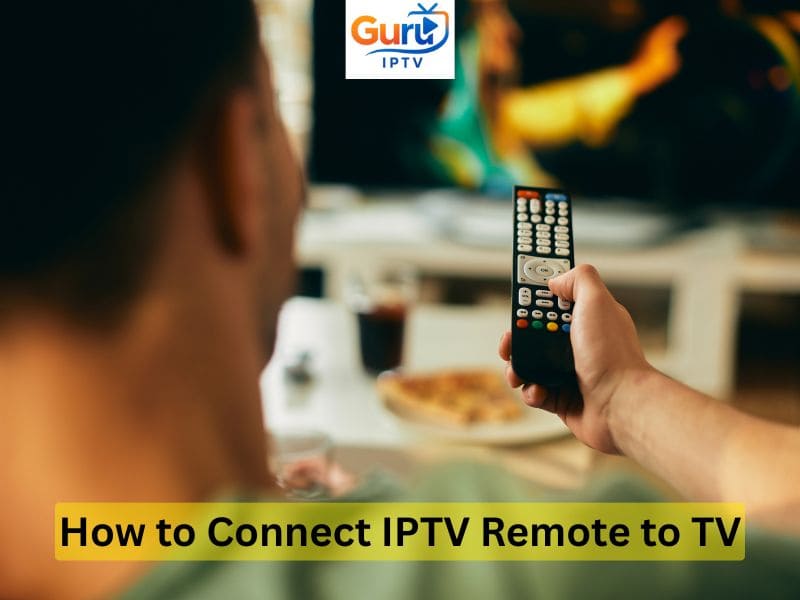
Connecting your IPTV remote to your TV depends on the type of IPTV box or app you’re using. Most IPTV remotes can be paired either automatically or manually through a few simple steps. Follow the guide below to get started.
- Check Your IPTV Device
Before you begin, make sure your IPTV box or streaming device (such as a Firestick, Android TV box, or MAG box) is properly connected to your TV and powered on. Insert the batteries into your IPTV remote control.
- Automatic Pairing (Most Common)
Many IPTV remotes pair automatically when you turn on the device for the first time.
Turn on your TV and IPTV box.
Point the remote directly at the IPTV box.
Press and hold the OK and Power buttons together for 3–5 seconds.
When the light on the remote blinks, release the buttons.
Wait a few seconds — the remote should connect automatically.
If the connection is successful, you’ll be able to navigate the IPTV menu or change channels.
- Manual Pairing (Using TV Remote Codes)
If automatic pairing doesn’t work, you can connect manually:
Find the TV brand code (usually in your IPTV box manual or remote instruction sheet).
Press and hold the SETUP or TV button until the LED light stays on.
Enter your TV’s code using the number buttons.
The light should blink twice to confirm.
Test the remote by pressing the Power or Volume button.
If your TV responds, the remote is successfully connected. If not, try another code from the list.
- Pairing Bluetooth IPTV Remotes (for Smart TVs or Boxes)
Some IPTV remotes use Bluetooth instead of infrared (IR).
Here’s how to pair them:
Go to your IPTV box Settings > Remote & Accessories.
Choose Add Remote or Pair New Device.
Put the IPTV remote in pairing mode (usually by holding the OK and Back buttons for 5 seconds).
Select your remote name on the screen to complete pairing.
This method works with Android boxes, Firestick devices, and some Smart TVs.
- Test the Connection
Once paired, try controlling the TV volume, channels, and IPTV menu. If the buttons don’t respond, re-pair the remote or check that the batteries are inserted correctly. Ensure there’s no obstruction between the remote and the IPTV box if it uses infrared.
- Troubleshooting Tips
If the remote still doesn’t connect:
Replace the batteries.
Restart your IPTV box and TV.
Move closer to the device.
Check if your IPTV remote is compatible with your TV brand.
For Bluetooth remotes, make sure no other Bluetooth devices are interfering.
If nothing works, contact your IPTV provider’s support team — they can help you reset or replace the remote.
Final Thoughts
Connecting an IPTV remote to your TV is usually quick and straightforward. Whether it’s an infrared or Bluetooth model, the process takes just a few minutes. Once paired, you can enjoy full control of your IPTV service — from switching channels and browsing the EPG (Electronic Program Guide) to managing volume and apps. With everything working smoothly, you’ll be ready to experience the best of IPTV entertainment right from your couch.